Search
  • Information
    • About
    • Contact
    • Privacy Policy
  • Blog
  • Subscribe
  • Tutorials
    • Tutorials
    • Doll Clothes: Photos and some Patterns
  • Suggested Reading
  • Quilts: My Original Designs
  • Gallery: Color Studies
  • Gallery: Quilts I've Made
  • Doll Making Blog Posts
  • Recent blog posts
  • Quilts Based on The Improv Handbook for Modern Quilters
Close
Menu
Search
Close
  • Information
    • About
    • Contact
    • Privacy Policy
  • Blog
  • Subscribe
  • Tutorials
    • Tutorials
    • Doll Clothes: Photos and some Patterns
  • Suggested Reading
  • Quilts: My Original Designs
  • Gallery: Color Studies
  • Gallery: Quilts I've Made
  • Doll Making Blog Posts
  • Recent blog posts
  • Quilts Based on The Improv Handbook for Modern Quilters
Menu

Sleeping Dog Quilts

SLEEPING DOG QUILTS

June 7, 2018

Designing a Quilt with Custom Set Blocks in Electric Quilt 8

by Judy Tucker


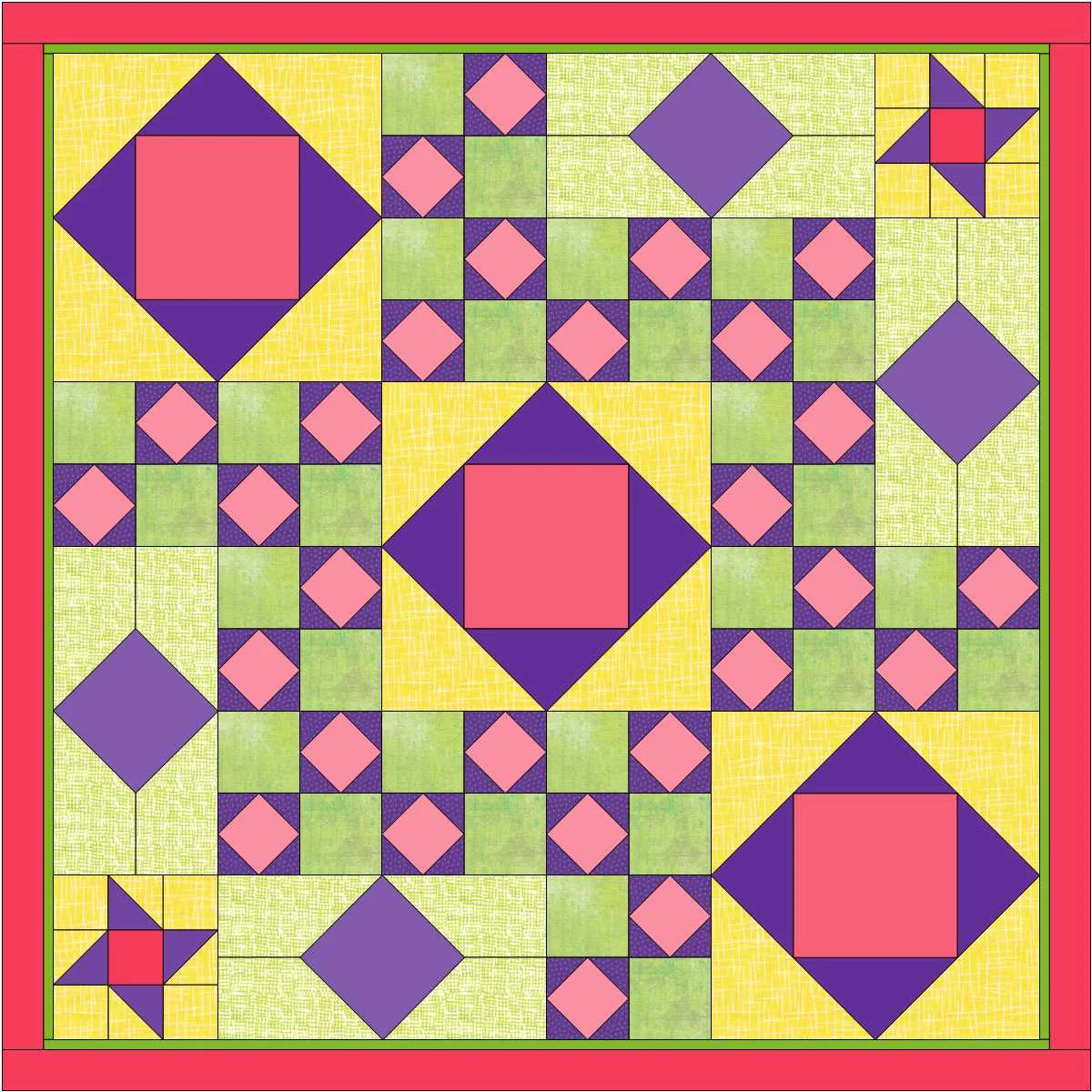
My Practice Quilt from Electric Quilt Blog tutorial "Custom Set Quilt!"

My Practice Quilt from Electric Quilt Blog tutorial "Custom Set Quilt!"

My Practice Quilt from Electric Quilt Blog tutorial "Custom Set Quilt!"

My Practice Quilt from Electric Quilt Blog tutorial "Custom Set Quilt!"

Electric Quilt has a blog that intermittently has hands-on lessons for using their revised program Electric Quilt 8 (EQ8).  The lesson posted on May 1, 2018 was exactly the tutorial I needed to design a quilt using the fabrics from last December's Yankee Swap...Custom Set Quilt!

This lesson teaches how to created a quilt with blocks of different sizes. This allows you to create a template all your own.  I've been puzzled how to do this in the past and have had only  modest success trying to accomplish this. Mostly I've given up because I just couldn't get the blocks to set together happily.

The key turns out to be a "Plain Block" that is written into the program. It existence of the Plain Block not readily apparent. You really have to know it's available.  I use EQ8 on my iMac. The drop down list with the Plain Block can be found by clicking on three light grey dots "..." in the bar over the blocks from the Block library.  (I gather that this drop down list appears in Windows when you click on an empty space between blocks the block tool bar).  

One of the choices in the drop down list is "add plain block".  This adds a plain square to the blocks you can choose from.  Once dropped on the quilt it can be moved around and changed to any size using the "adjust" button. When you have a block you like, you can copy and paste it as many times as you wish. Just brilliant...once you know how.  My design problems now have a very easy solution!

If you have EQ8 and are interested in designing quilts with custom set blocks, I highly recommend clicking on the link above and working through the tutorial. It's lots of fun and well worth the time.

I designed the quilt above working through the Custom Set Quilt tutorial.
Having worked through the tutorial, I now have the necessary skills to design a quilt that will use the Yankee Swap fabrics I showed in my last post on May 31, 2018. I'll show that quilt design in my post next week

PS: I did this tutorial in May.  Look what popped up on the May 13, 2018 Electric Quilt Newsletter!  It was fun to find my project quilt highlighted. I had shared this photo at the end of the lesson on their website. I don't have any business/financial ties to Electric Quilt--clearly they liked what I designed so they shared in their newsletter.  (The link in the photo below isn't active. But it is the same as the link in the first paragraph above).
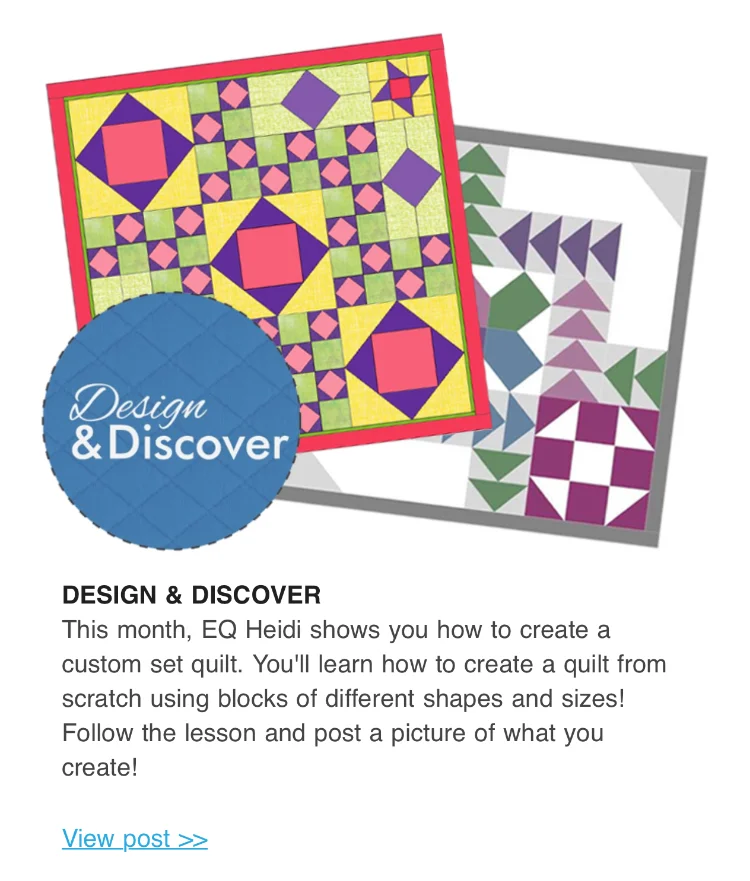
ElectricQuiltusingmyquiltinaNewsletter.jpg

TAGS: Electric Quilt 8, Electric Quilt Computer Program, Custom Set Blocks, Custom Set Quilt! DoYouEQ Blog, Quilt Design, Creating a Quilt Design


December 7, 2017

Electric Quilt 8: Experimenting with Foundation Piecing in the New Upgrade

by Judy Tucker


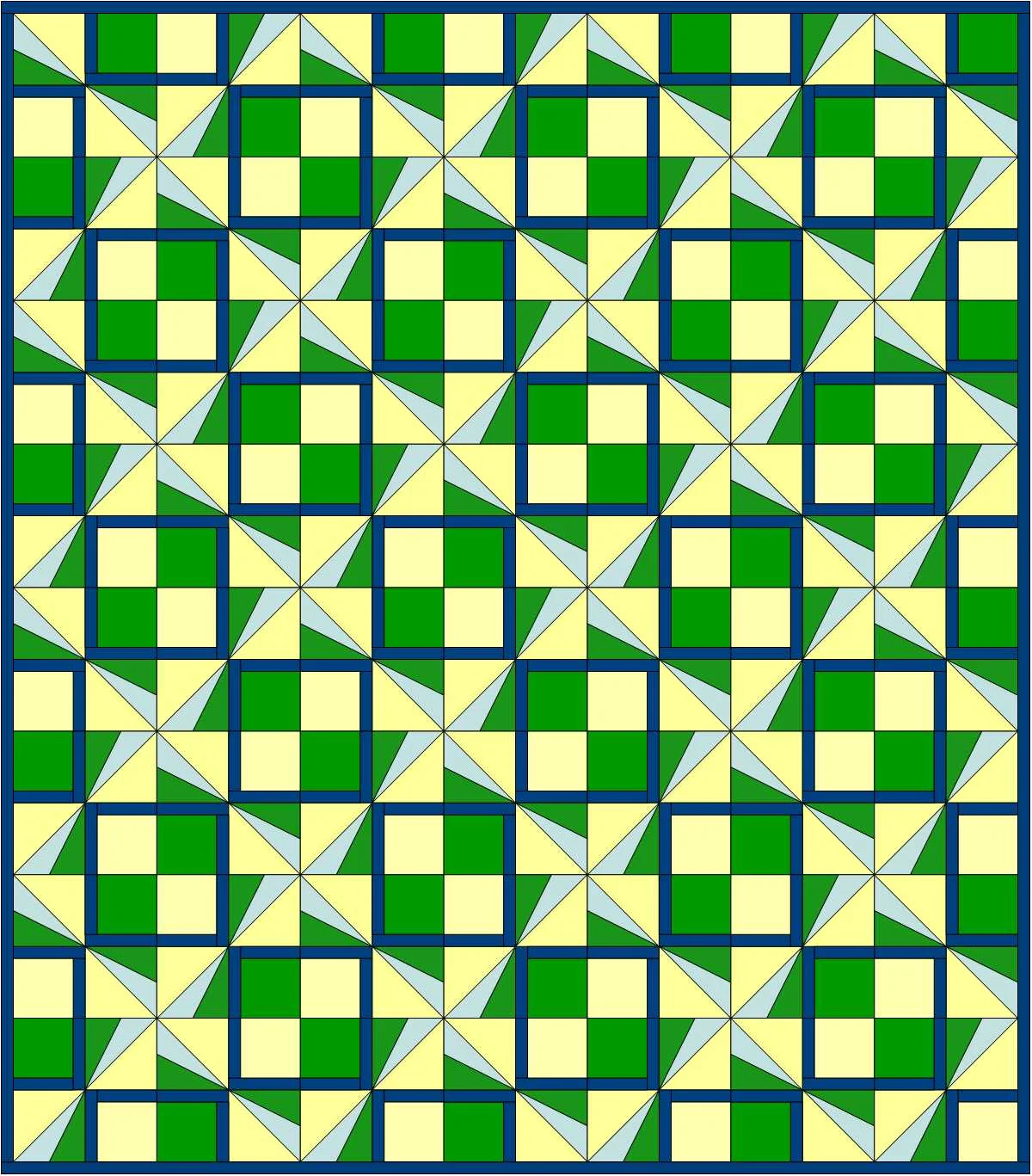
Pinwheel Plaid quilt design

Pinwheel Plaid quilt design

Pinwheel Plaid quilt design

Pinwheel Plaid quilt design

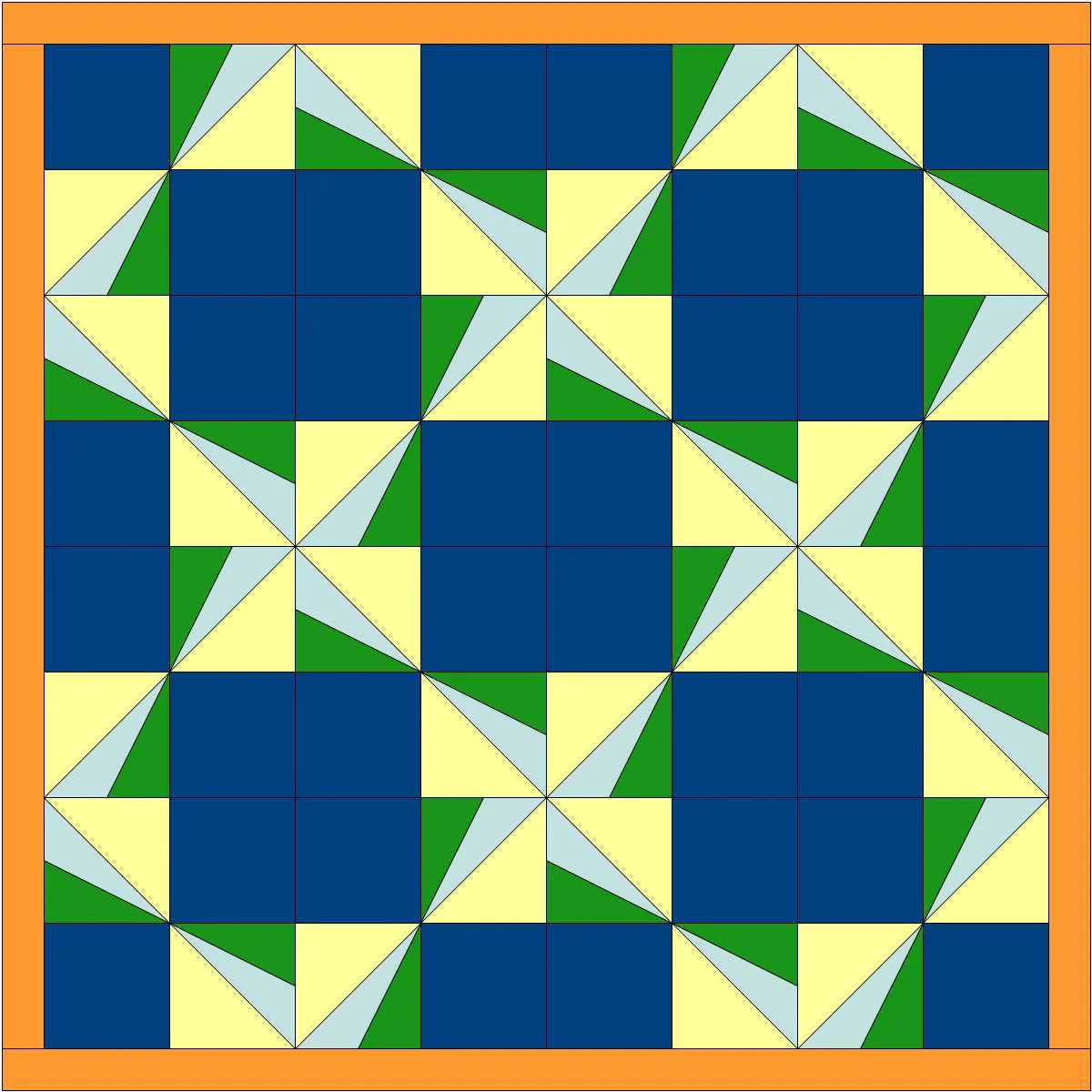
In my last post I used the new upgrade of Electric Quilt (EQ8) to make a quilt layout plugging blocks from EQ's Block Library into a grid. That was lots of fun.  But this week I decided to try creating an original design using EasyDraw Block in the program that would be assembled with foundation piecing, also known as paper piecing.  In foundation piecing, the block design is printed on paper and the fabric is sewn onto the design on the paper. When the quilt is finished, the paper is torn away, just leaving the fabric quilt top.

It took me a couple tries to get a workable design since I don't usually do foundation piecing.  My first design would have been a piecing nightmare--even with foundation piecing. The good thing was that was crystal clear when EQ8 set up the design to be printed on the foundation paper. Even though that design wasn't going to work, I was glad to know that early on in the progress and was able to redirect myself to a revised design that was usable.

Here's my 2nd block and the quilt it would make.  Those solid blocks were just two intense. So I decided to tweak it a bit.

Sunbeams WIP 1.JPG
Pinwheels with solid blocks.JPG

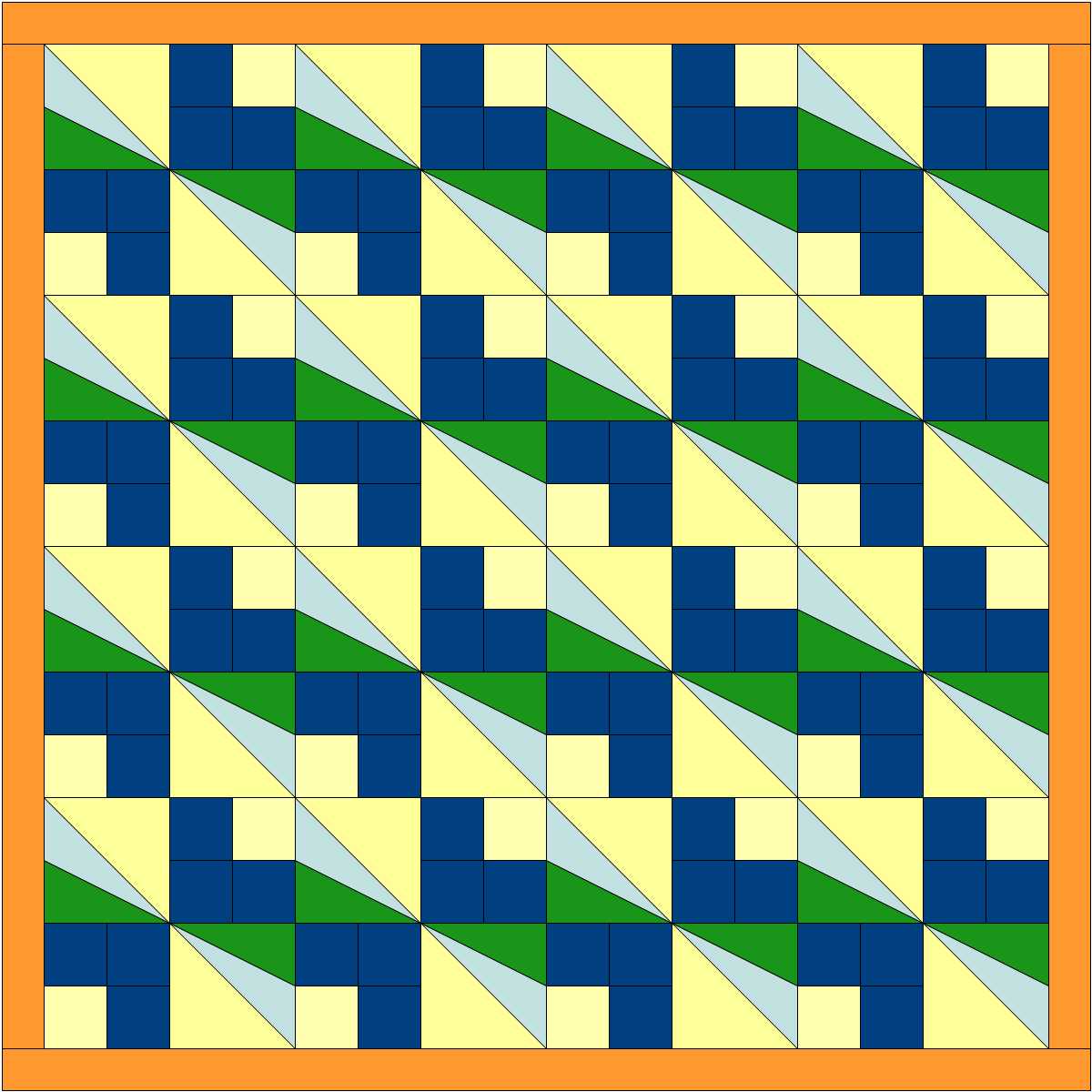
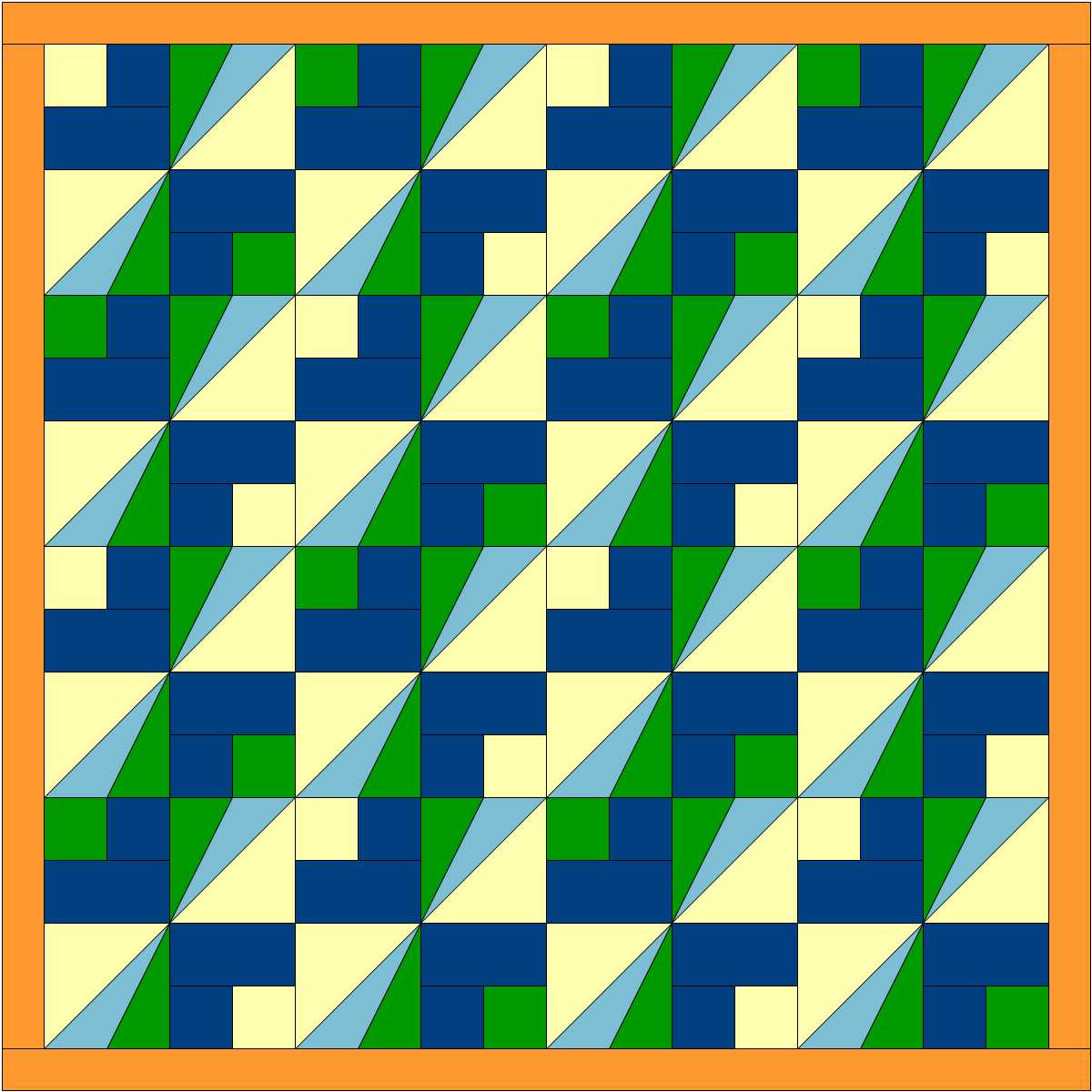
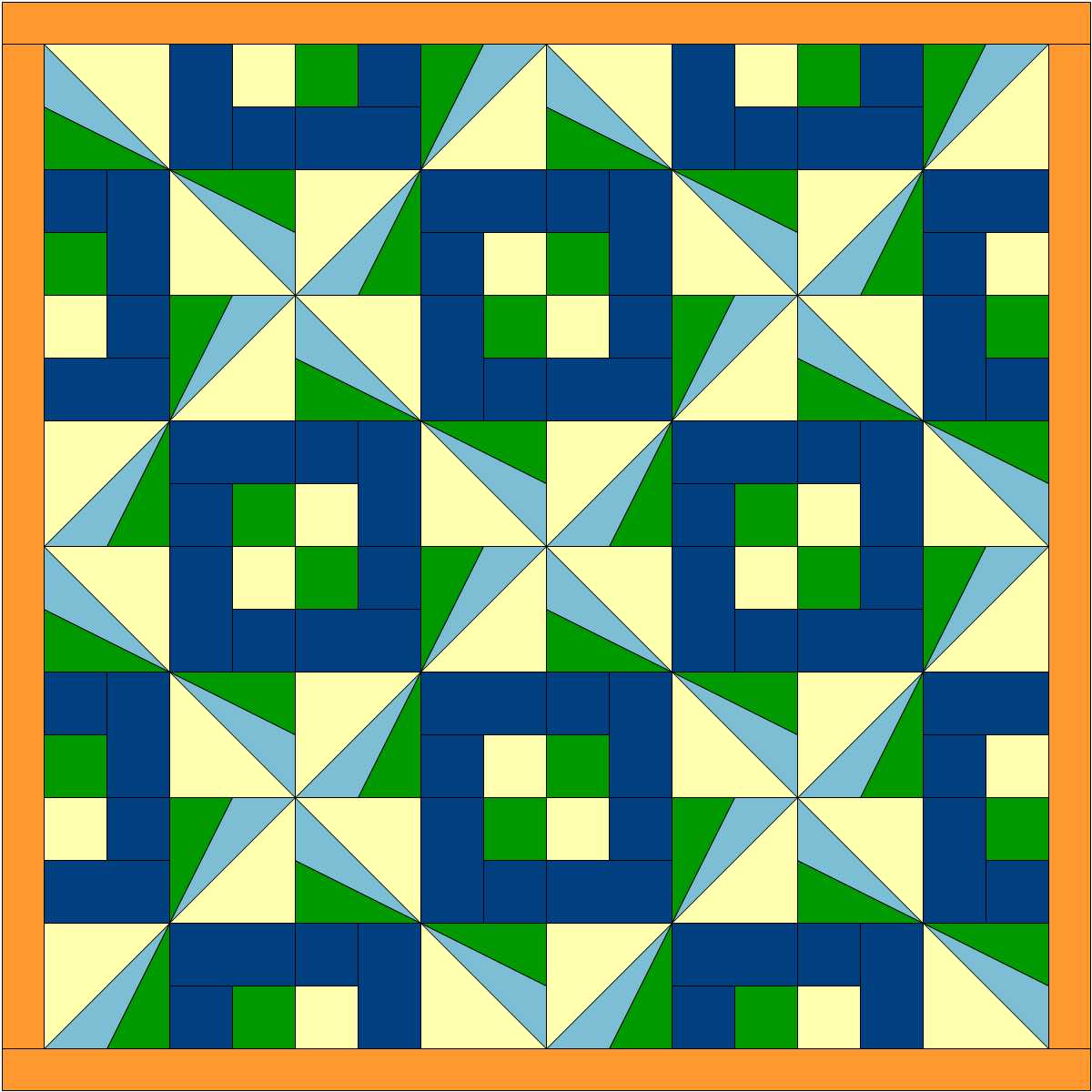
I went back to EasyDraw Block and added a couple lines and created a smaller square with a border in place of the solid square. Here's what that block and two quilts design options using that it look like. EQ8 has number of functions where you can let the computer change things up for you. I changed it up using the "Symmetry" tab. It's like having a design wall that moves all the blocks around for you! I prefer the quilt on the left, but it was fun to see the options.

Sunbeams.JPG
Sunbeam  Block with the same colors.JPG
Sunbeam staircase.JPG

Next I changed the color in one of pair of smaller blocks. That added some more interest. Here are some of the design options suggested by the "Symmetry" function.

Sunbeam block WIP 1.JPG
Sunbeams quilt 2 colors vs 3.JPG
Sunbeams quilt 2 colors vs1.JPG
Sunbeams quilt 2 colors vs 2.JPG


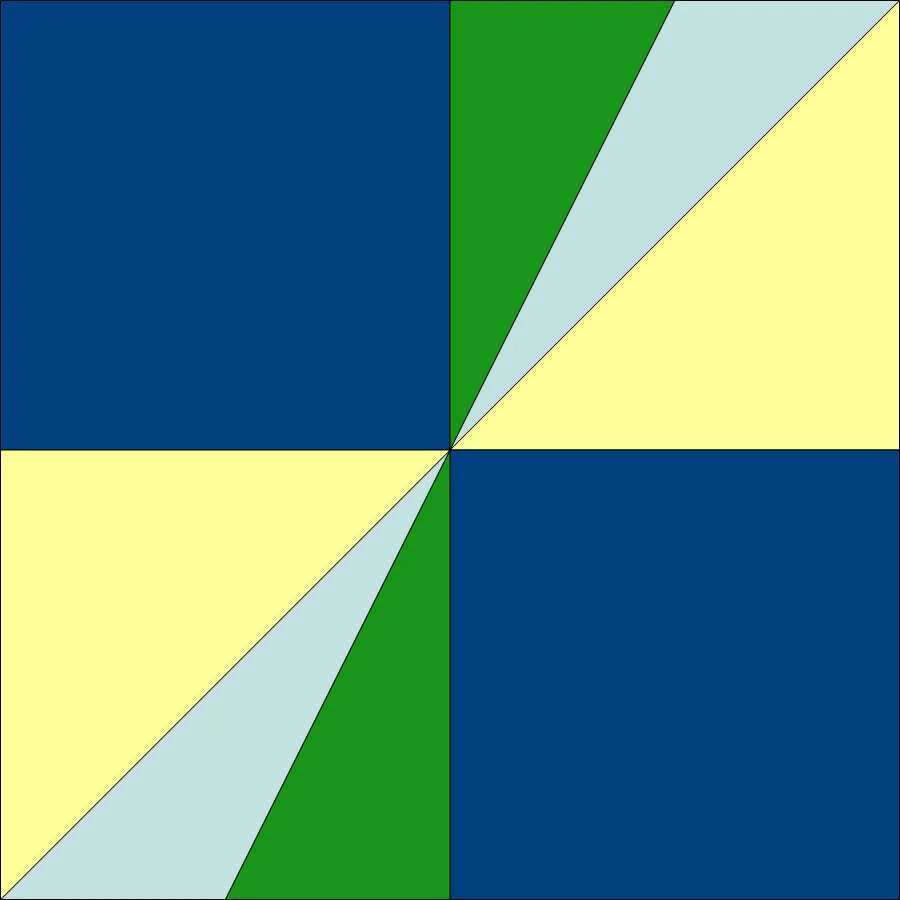
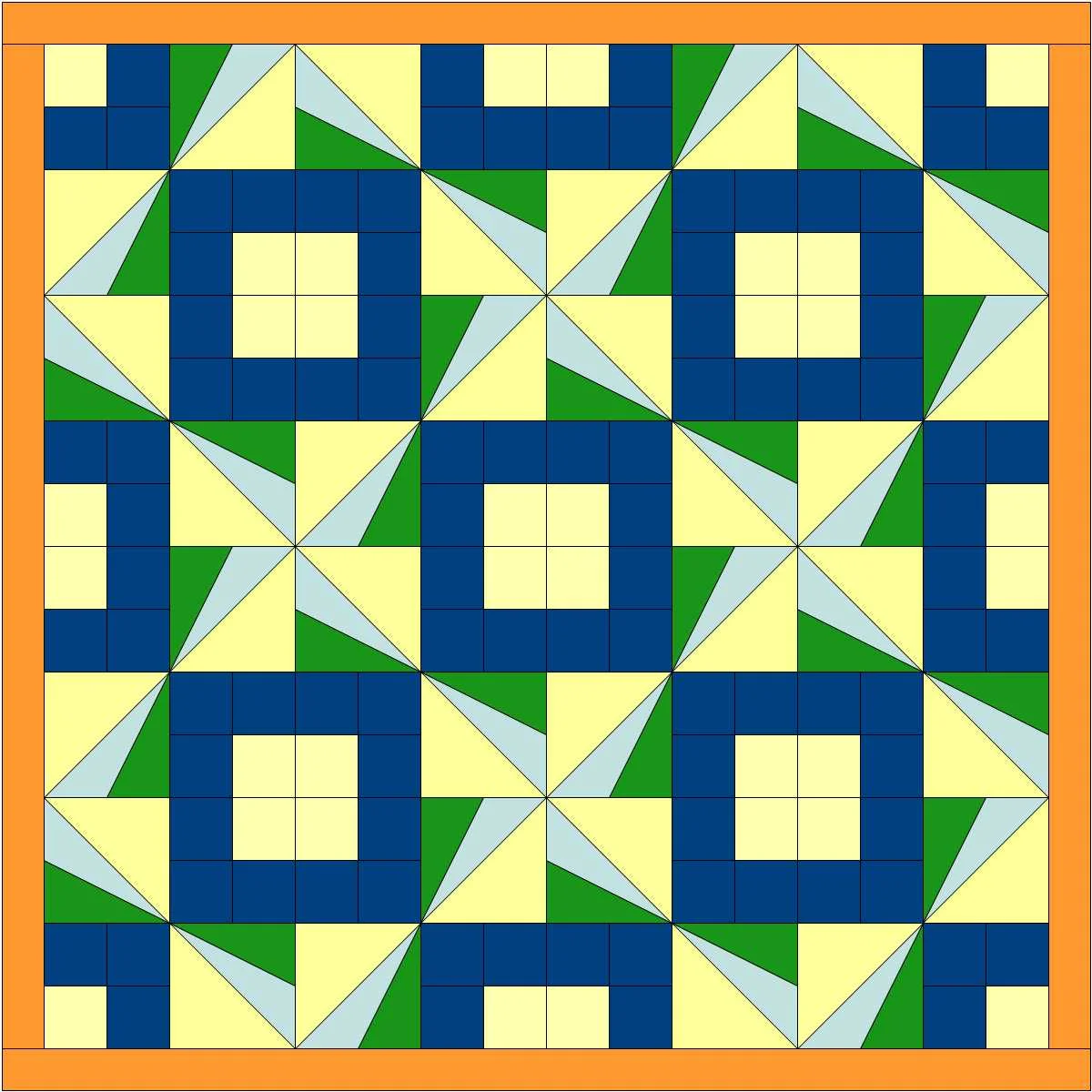
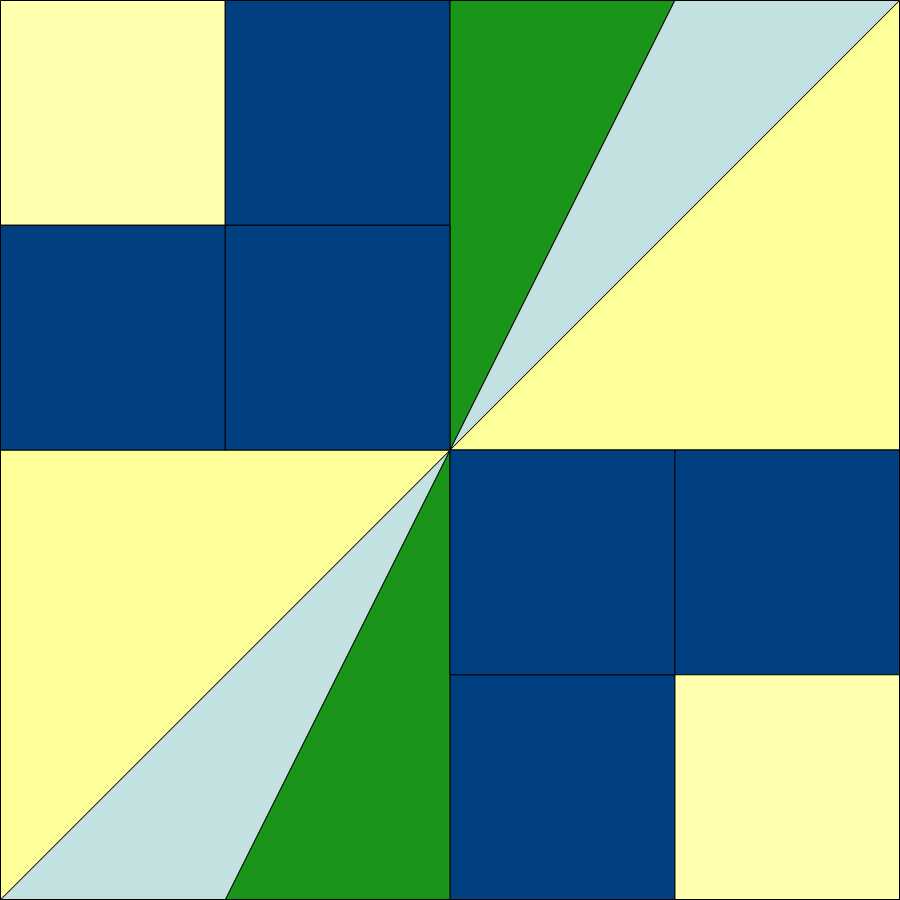
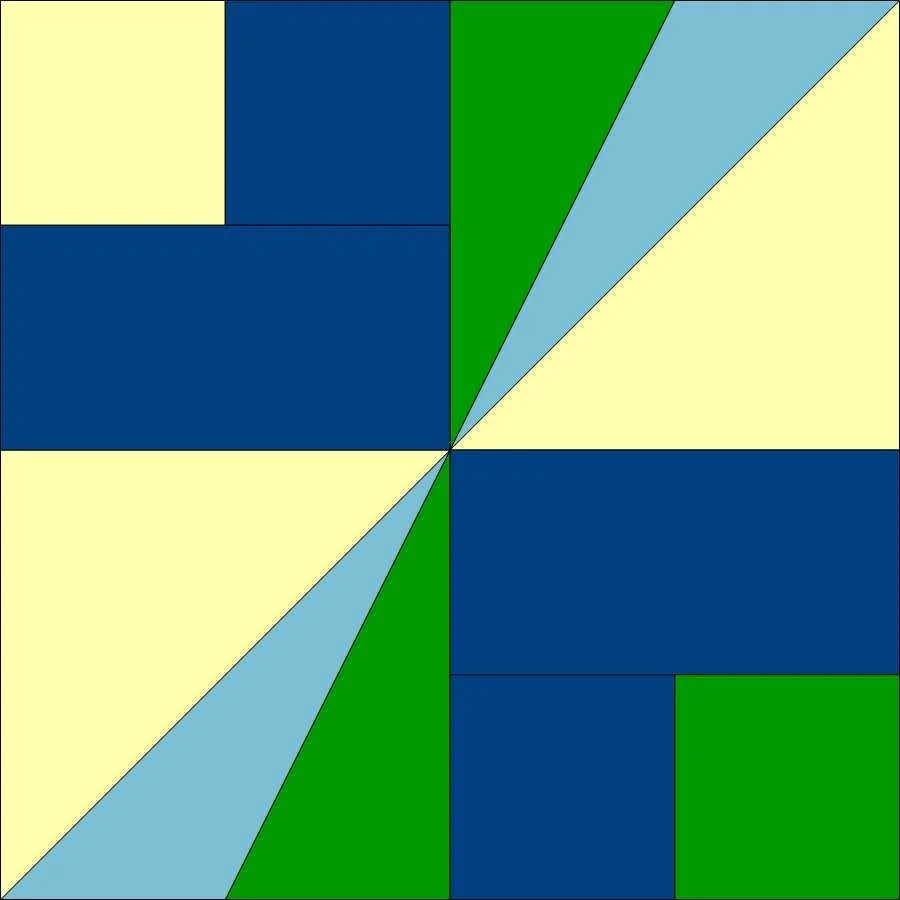
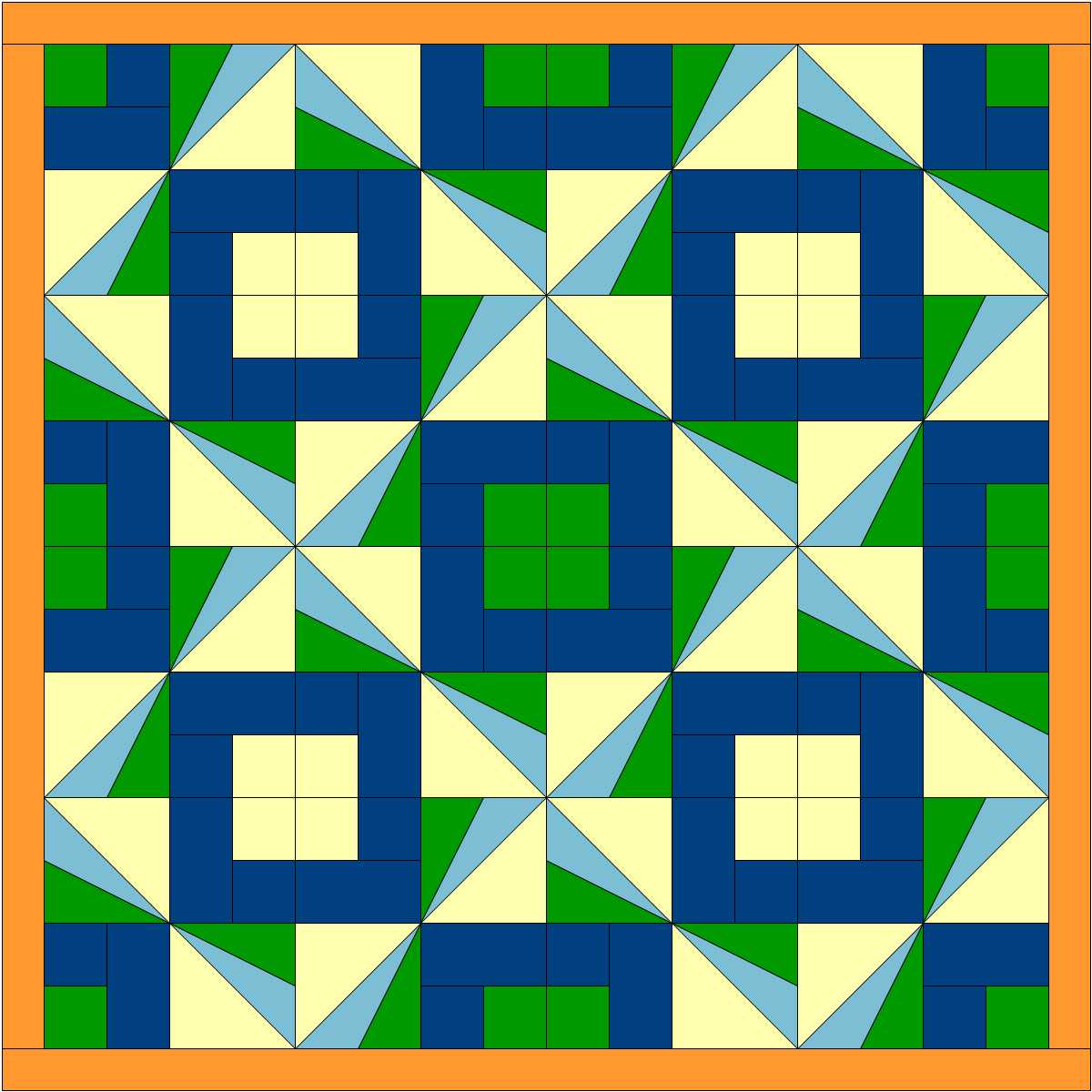
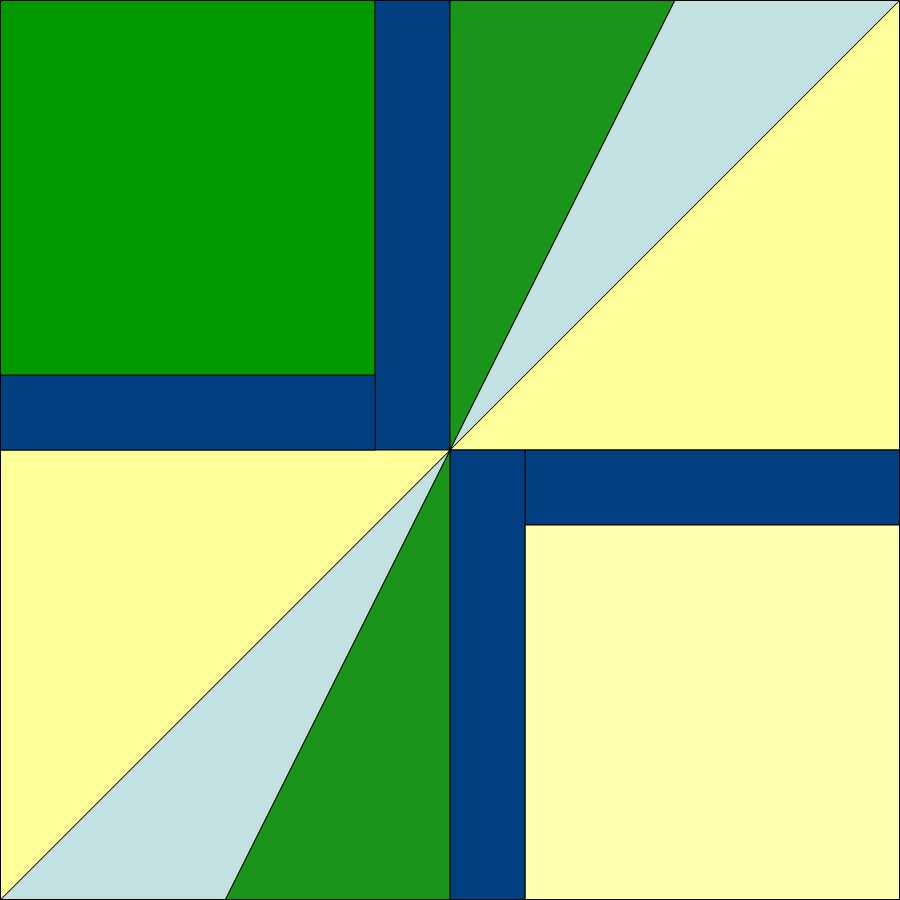
My final design is at the top of the page.  That was created with the block below, which has a narrower border. It was very easy to modify these blocks. While the Undo arrow probably would have done the job for me, I chose the Pick tool (a diagonal arrow) to pick the line I wanted, deleted that and drew the new line. It's really quick and it works well for me. I then used the "Symmetry" function again with this final design and let the computer flip the blocks on the virtual design wall until I found the design I liked best.

Sunbeams block.JPG

This was a really interesting project and I got better acquainted with EQ8 doing it.  I'm still finding my way around EQ8, but really appreciate a nimbleness and ease of use in this new upgrade.  I think the upgrade is definitely worth doing.


TAGS: Electric Quilt 8, Electric Quilt Computer Program, EQ8, Quilt Design, Designing quilts, Designing Foundation Pieced blocks in EQ8


November 30, 2017

Electric Quilt 8: Experimenting with the new Upgrade

by Judy Tucker


Quilt top designed in EQ8

Quilt top designed in EQ8

Quilt top designed in EQ8

Quilt top designed in EQ8

I've been using Electric Quilt (EQ), a computerized quilt designing program, now for a number of years. Because I only use it sporadically, I am by no means an expert. But when EQ7 was recently upgraded to EQ8, I knew this upgrade was on my "need to have" list.

I initially learned EQ6 on a PC.  But when they released a version of EQ7 that was Apple compatible I made the switch.  Using EQ on Apple computer, both laptops and desk computers, has worked well for me.

EQ8 is set up a bit differently than EQ7 and some of the tools have new names. The toolbar with blocks chosen for the quilt, colors, and fabric choices that used to be on the right side of the screen is now above the screen on the left side and the tools open in a box next to the work area.

It looks like this program has a lot more versatility for creating your own blocks and quilts. But so far, I have only used a basic layout, adding blocks from EQ8's block library. Setting up a layout was straightforward, as was adding and changing borders from the grids available in the program.

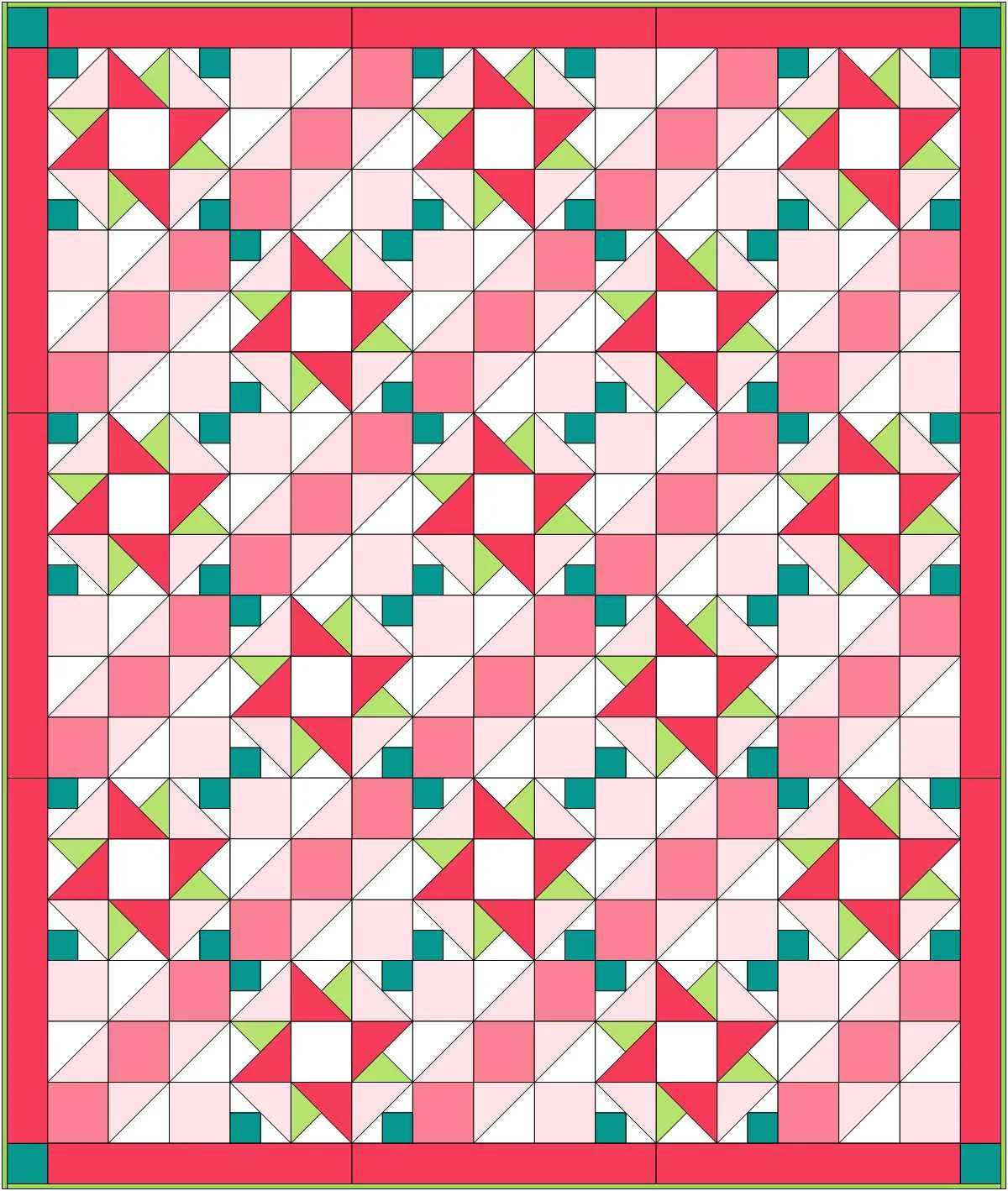
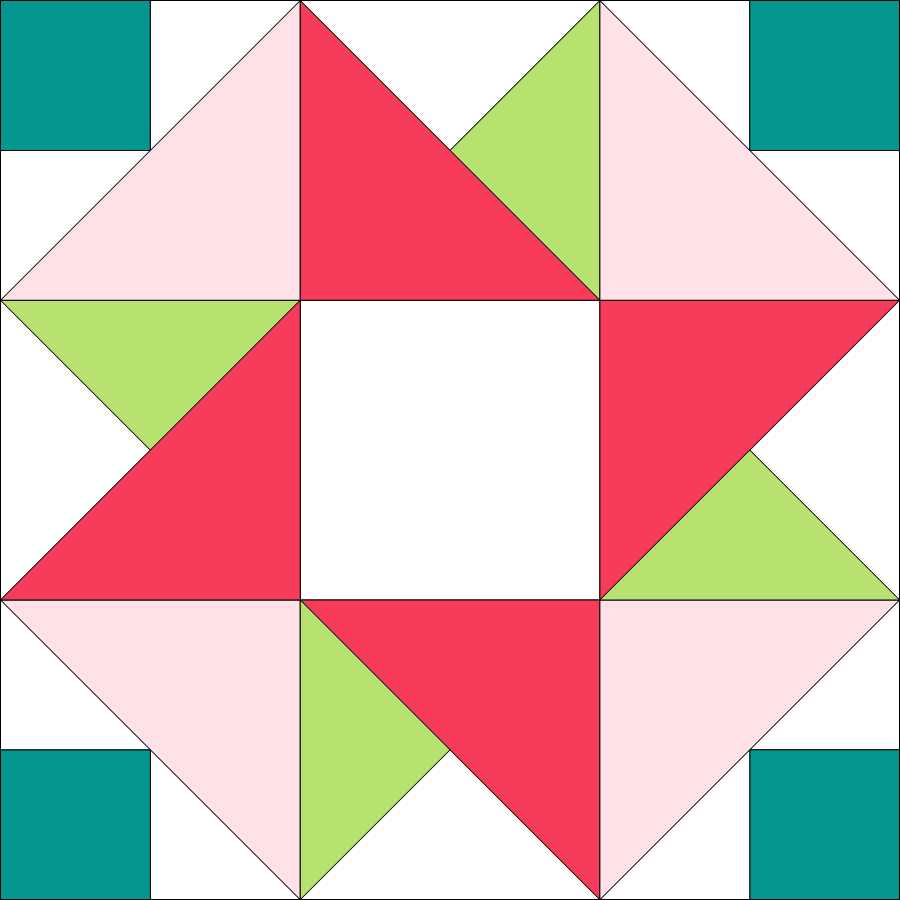
For the quilt above I used the block "Strawberry Smoothie" (left below) and "Road to California"  (right below). It was really easy to plug blocks into layout grid, change blocks in the layout and rotate them to different positions. I changed colors used in the library blocks to the colorway of my choice. You can also upload scanned pictures of fabric if you want to see the actual quilt you are designing. Here are the two blocks. It's OK to share these blocks...EQ8's software is copyrighted but the blocks are not.

Strawberry Smoothie block.JPG
Road to California Block.JPG

I've had a bit of "where is that tool?" to deal with, but overall, I'm really enjoying using the EQ8 Upgrade. I think the next thing I'll try is designing my own blocks. That's something I did often in EQ7. It will be fun to see how it works in EQ8.

TAGS: Electric Quilt 8, EQ8, Electric Quilt Computer Program


Powered by Squarespace 7